maxinja
maxinja builds campaigns and customer journeys from your brief. Describe who you want to reach, what you want them to do and which facts must stay fixed. It works with your customer data and brand kit to save an audience, email or workflow you can open and refine.
For example, a coffee brand wants returning customers to try a new roast. A useful brief is:
Create a draft broadcast for customers whose latest order was at least 14 days ago. Introduce the supplied coffee using their purchase history. Keep the price and product link fixed. Use our published brand kit and leave the campaign unscheduled.
The result is a saved campaign: an audience to inspect, an email to preview for different customers and a schedule you control. Follow your first maxinja campaign brief to try this with your own data.
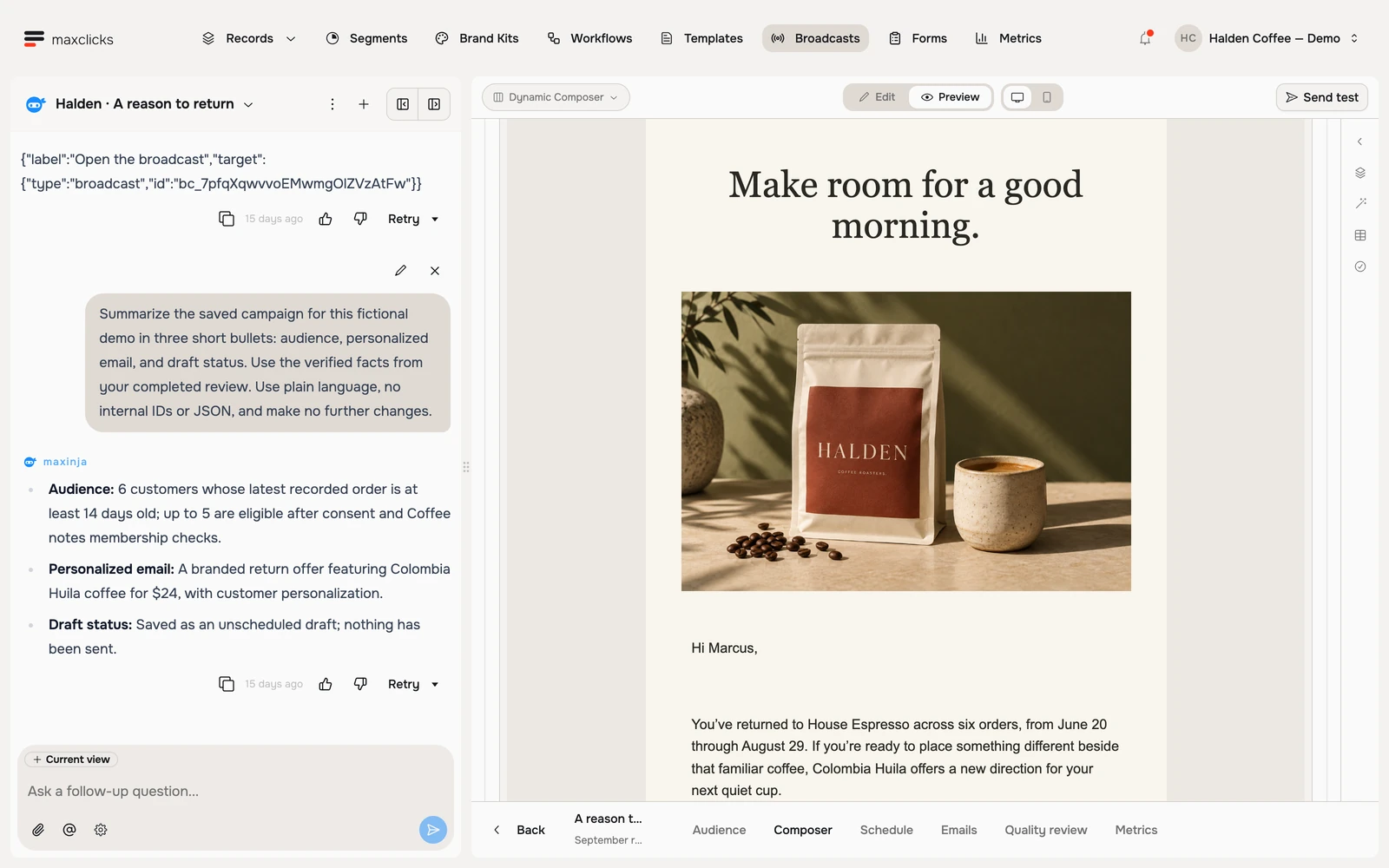
maxinja builds it. Adaptyle personalizes it.
These capabilities work together at different moments:
| Capability | What it does | In the coffee campaign |
|---|---|---|
| maxinja | Builds and refines saved campaign content and settings from your brief. | Creates the audience and email, including the personalization instructions. |
| Evaluated attributes | Run saved lookup or calculation logic when a value is requested. | Find a customer’s latest order or total order count. |
| Adaptyle | Uses AI to write the marked content for each recipient when the email is rendered. | Relates the new roast to Marcus’s espresso purchases while keeping the offer and link fixed. |
Writing a draft and generating a recipient’s email are separate operations. You can edit Adaptyle instructions yourself or ask maxinja to help write them.
What you can ask it to build
For ongoing campaign work, the chat coordinates three kinds of deliverable. A follow-up can refine the same saved work:
| Ask for | What it sets up |
|---|---|
| A template | The email itself: subject, content, sender, and a rendered preview you can look at. |
| A broadcast | Its name, the contact schema, the audience, the email, and the schedule. |
| A workflow | The steps, the connections between them, the configuration inside each step, and publishing it when you ask. |
Use the dedicated segment, evaluated attribute and webhook controls to generate their conditions. Schemas and forms have their own setup screens. Initial onboarding also offers agent assistance with the data model and CSV mapping while setup is incomplete; that is separate from the ongoing campaign-building chat.
Use maxinja to investigate before you brief a campaign. Ask "Which customers have at least two orders but none in the last 60 days?" and it can query your workspace and report the result. These data queries are read-only. A workflow it builds can separately create or update records when that workflow runs. Product questions use the built-in reference manual.
Where you talk to it
The chat pane. Click the maxinja button beside your work to open it, and describe what you want. The conversation stays with you as you move around the app, so one chat can go from a broadcast to the workflow that follows it. See working with the assistant.
Next to a field that needs logic. Examples include a segment, an Evaluated on demand attribute under Settings → Schemas → Attributes, and a webhook condition under Settings → Developers → Webhooks. You describe what you want, maxinja generates it, and you get back a readable description of the rule (plus, for a segment, how many contacts match). A second box under it takes your refinements.
On a workflow step. The step panel opens with a box for describing what the step should do. What you type there goes to the chat with that step already attached.
Inside an email. The maxinja input at the bottom of the editor’s right panel follows the selected subject, block or panel and edits the saved draft. Adaptyle instructions stay in that draft and run later when recipient content is rendered.
Write a useful brief
Start with the customer and the decision. maxinja can use your workspace definitions and query supplied records, but the source data must exist. Include facts that are absent from the workspace, and use @ to identify an existing campaign, segment or brand kit.
A useful campaign brief includes:
- Audience: the customer behavior, time window and exclusions.
- Message: the reason to act, offer and desired call to action.
- Fixed facts: prices, dates, required wording and destination links.
- Scope: whether you want a draft, a scheduled send or a published workflow.
For the coffee campaign above, add an exclusion if needed: “Exclude anyone who already received this product announcement.” For an existing campaign, attach it and name the exact change.
Inspect the matching contacts, sender, template and several recipient previews. A completion message describes the saved work; it does not establish that email has been delivered.
Build an audience for one campaign
A broadcast's audience picker offers every contact in a schema, or one saved segment. To define a custom condition for that broadcast, describe it to maxinja: “At least two orders, none in the last 60 days, excluding anyone who already received the September email.” maxinja builds the campaign-specific filter from the available data.
Check people who should match and people who should be excluded. A matching audience count is separate from sending eligibility: consent, topic membership and sending rules still apply.
For an audience you will reuse, choose New segment on the audience screen or open Segments and describe the condition there. See create a segment.
Inspect scheduled customer signals
Use a reusable evaluated attribute when several campaigns need the same customer signal, such as completed purchases in the last 30 days. On demand runs saved lookup logic when selected. Scheduled publishes complete Event-history calculations in the background.
maxinja can list Scheduled evaluated attributes, inspect their status and published values, and request a refresh using the saved definition. Define or refine the attribute under Attributes on its owning contact or object schema through Review and Apply. The chat's inspection tools do not create a separate signal catalog.
Show the publication status and current published values for the Customer attribute
completedOrders30Days. Tell me which generation and data window those values describe before I use them in a journey.
A refresh queues background work and can reuse an already active refresh. Reading a preview or a published value does not refresh it. Check publication status and the data window in the scheduled evaluation reference before treating the result as current.
Configure source collection and Event schemas in Events. A workflow's Evaluated attribute threshold trigger uses an enabled Scheduled attribute with a usable Event source. Publication establishes a baseline; existing matching customers do not immediately enroll. Review the threshold controls before publishing.
What it costs
maxinja access is included without a per-seat charge, subject to workspace write permission. All AI usage is paid separately from the shared workspace wallet. There is no monthly AI allowance. A campaign brief, revision and Adaptyle preview can each add usage; the model, context and work performed affect the total. Review AI and usage credits and representative usage before scaling.
Separate building from execution when planning usage. An Adaptyle email invokes AI for each recipient whose personalized content is rendered. Previews and regenerations also use credits. A workflow step that calls a model adds usage on each run.
There is no fixed total quote for an assistant brief or fixed internal exchange fee. Actual model/tool work adds usage, including delegated work, sample generation and images. Usage already incurred remains when work is stopped or fails. An admin can inspect spend by period, category and member under Settings → Billing → Usage; it does not provide a per-exchange total. In the email editor, Personalize → Estimate provides an estimate for recipient rendering and campaign sending.
The model it runs on, and where it assists
In Settings → maxinja → General, choose the default model for new chats and the app’s generation actions. To change one conversation, use the gear icon in its message box. An active request keeps the model and MCP selection it started with; new session settings apply to subsequent work.
Choose a model that supports the conversation’s attachments and required tools. Existing images and PDFs remain in the conversation when you switch models; an unsupported selection is rejected rather than silently replaced.
Runtime AI has its own settings. AI-calling workflow steps and email templates with Adaptyle instructions each require their own model and thinking settings. Those settings determine execution behavior and do not follow a later change to the workspace default.
The same tab carries Editor autocomplete. On Automatic, maxinja finishes the Liquid expression you are typing in the email editor, showing the rest of it as faded text you accept with Tab, and each suggestion is a small AI call against your credits. Off turns off both the suggestions and their cost, and you write Liquid by hand. The choice covers everyone in the space.
The MCP servers tab lists the MCP servers registered for the space. Register one and maxinja can call your own tools in a conversation. Both tabs are admin-only.
Access and execution
- Workspace conversations require write access. The server checks access when a conversation starts, accepts a command and executes work. Read-only access alone does not authorize a maxinja run.
- It can carry out a requested publication or send without another assistant approval stage. Product validation and execution gates still apply. See while maxinja works.
- It is only in the app. maxinja is not part of the Public API, so nothing outside maxclicks can start a conversation with it.
Related
- While maxinja works: what happens after you hit send.
- Working with the assistant: the chat pane itself.
- Adaptyle: personalizing an email per recipient.
- Campaign briefs to use: examples with required data and review criteria.
- Segments and evaluated attributes: reusable audiences and customer answers.
- Billing: credits and what they buy.