Send a broadcast
Take one campaign from audience selection to a reviewed send. A broadcast combines your customer conditions, branded email and timing; maxinja can help build all three. This guide shows where to inspect the work and how to send now or schedule it.
Walkthrough steps
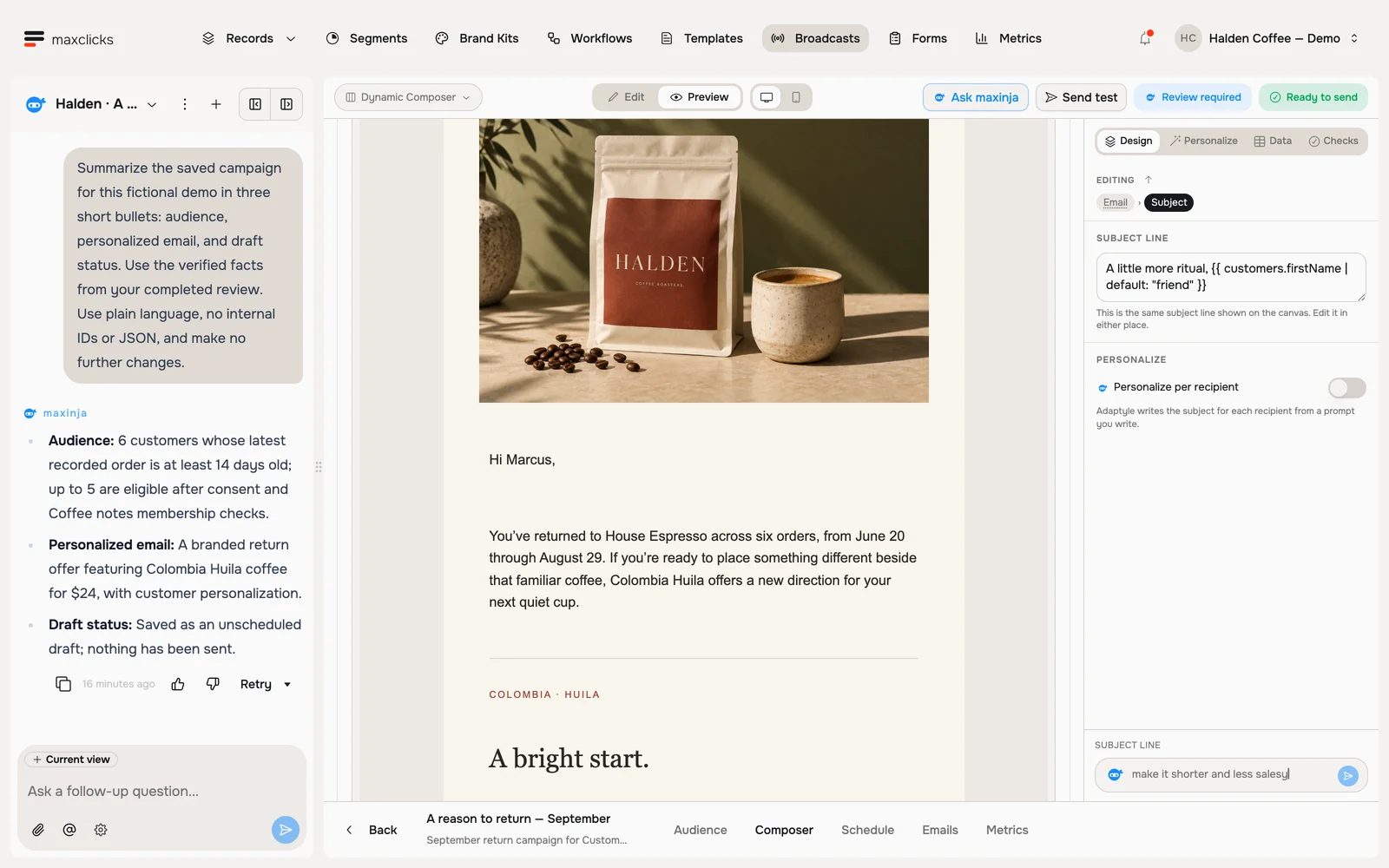
Read maxinja’s completed review of a real Halden campaign draft. Inspect the actual audience count, available draft controls and saved Marcus preview. The agent corrected the audience and sender and left the campaign unscheduled. This is a walkthrough of the completed review, not a recording of live campaign creation; no email is sent.
Start a new broadcast
In the top navigation, open Broadcasts and click New broadcast. The wizard opens on "Who is this broadcast for?", so you pick the audience before anything else. It is created as "Untitled Broadcast 1", and you rename it, to something like "March newsletter", from its header afterwards.
Choose who receives it
Start with the Contact schema: the kind of contact this email can reach, such as Customer or Subscriber. Send to all of them, or narrow it down with a segment. To build a new segment here, describe the group in plain words, like "customers who bought in the last 30 days", and maxinja works out who matches.
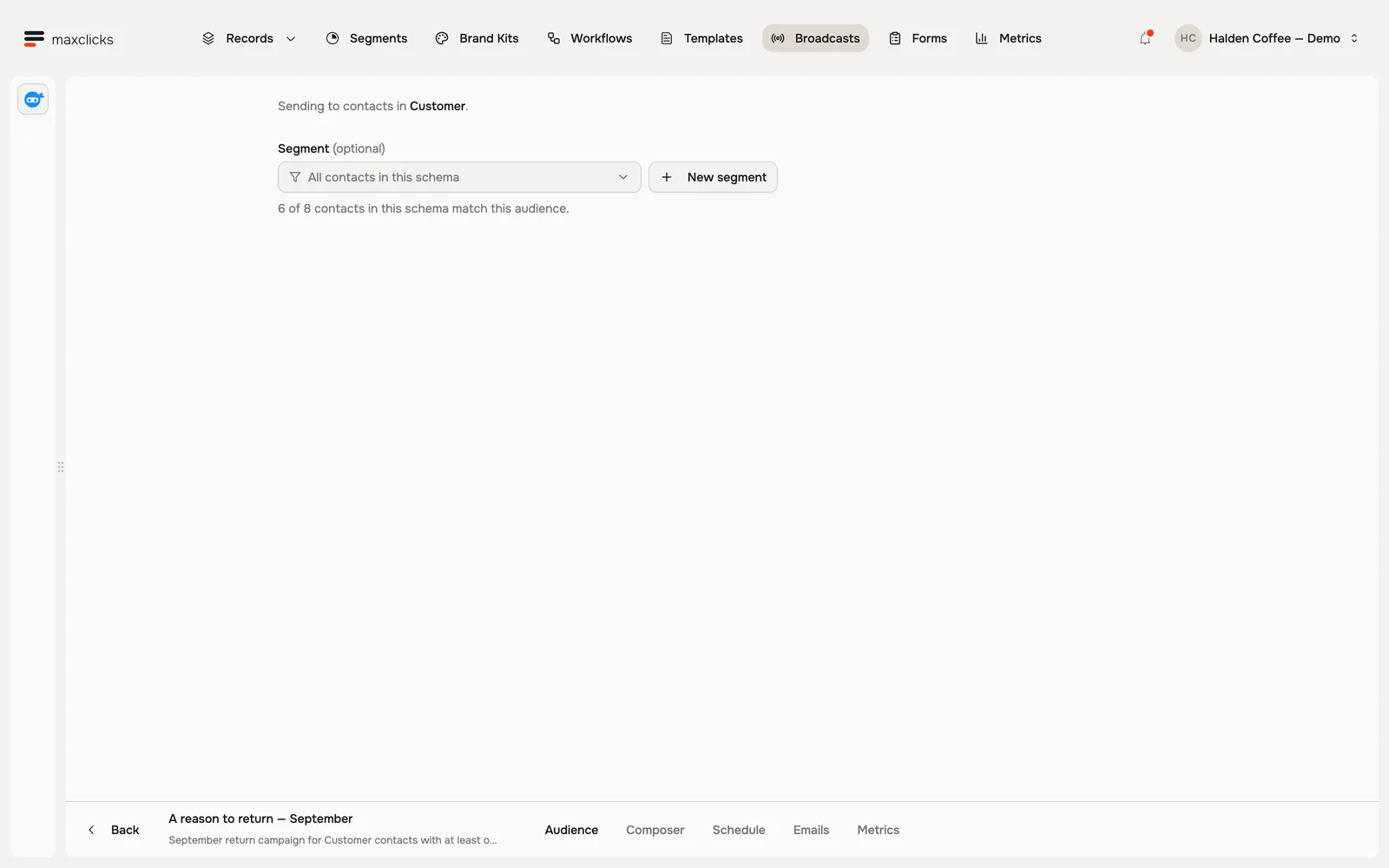
Halden demo · Six customers match this broadcast’s custom audience; sending eligibility is checked separately. Design the email
Open Composer, using Add content if the broadcast has no email yet. Review its sending mode: a newsletter or announcement is Marketing. The mode is fixed on the email, so use content created for the purpose you intend. The broadcast supplies one audience contact as the recipient.
Then build the email in the editor. Add your text, images, and buttons, and it picks up your brand. Ask maxinja to draft it from a short description if you would rather not start from a blank canvas.
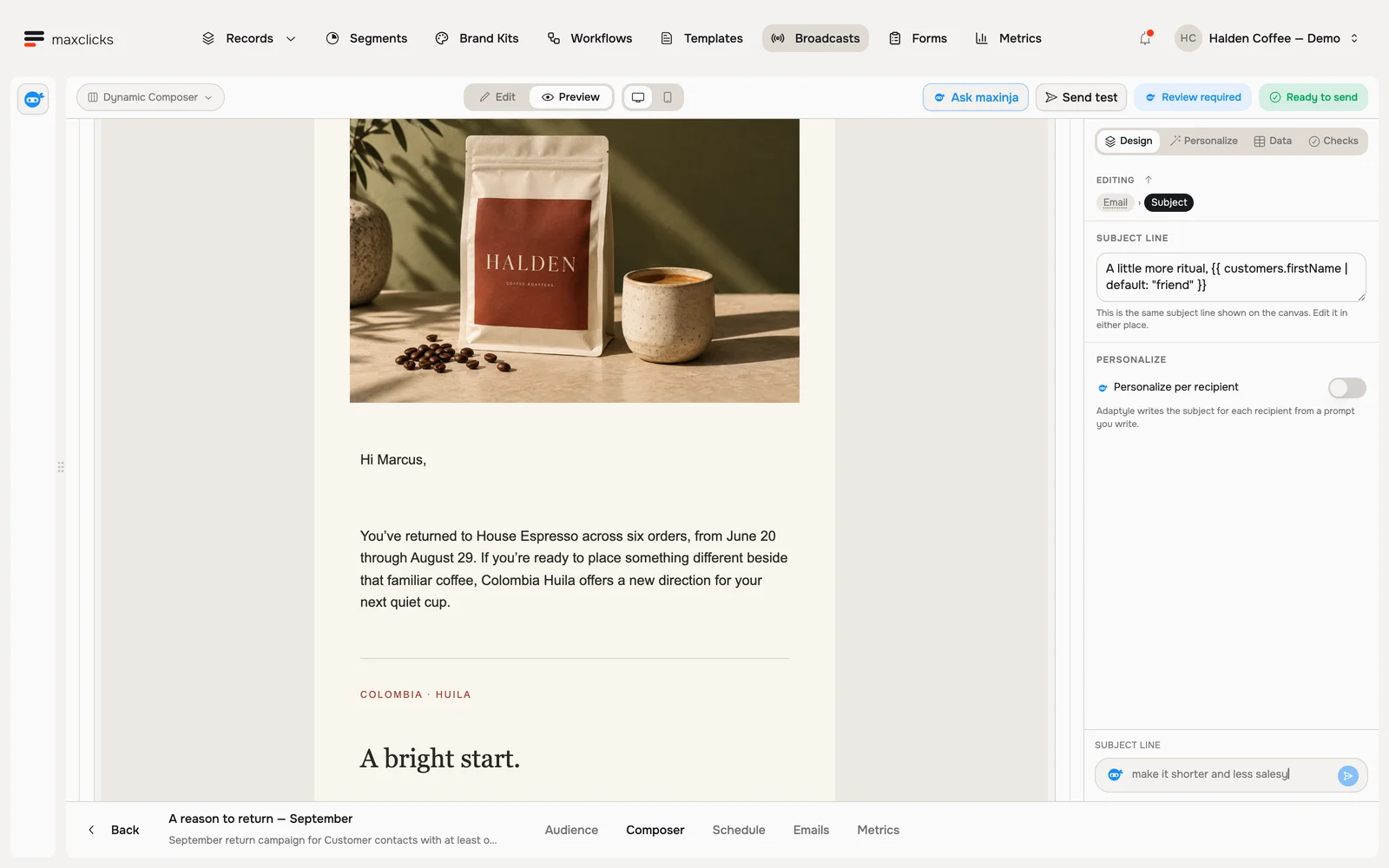
Halden demo · Marcus’s generated preview uses his espresso purchase history. The campaign remains a draft. Preview and send a test
Inspect a rendered sample and its data, then use the toolbar's Send test to mail yourself a copy and check it in a real inbox. Send test needs a verified sending domain and a sender picked in From before the button is enabled, and it is a real send: it counts against your monthly email allowance like any other.
Send now or schedule
Open Send (or Schedule after saving a draft). Review the audience, content readiness and Estimate, then choose Send now, Schedule for later or Save as draft. Marketing requires email and applicable topic consent; suppressions are checked before dispatch. The matching audience count is not the final number of deliveries.
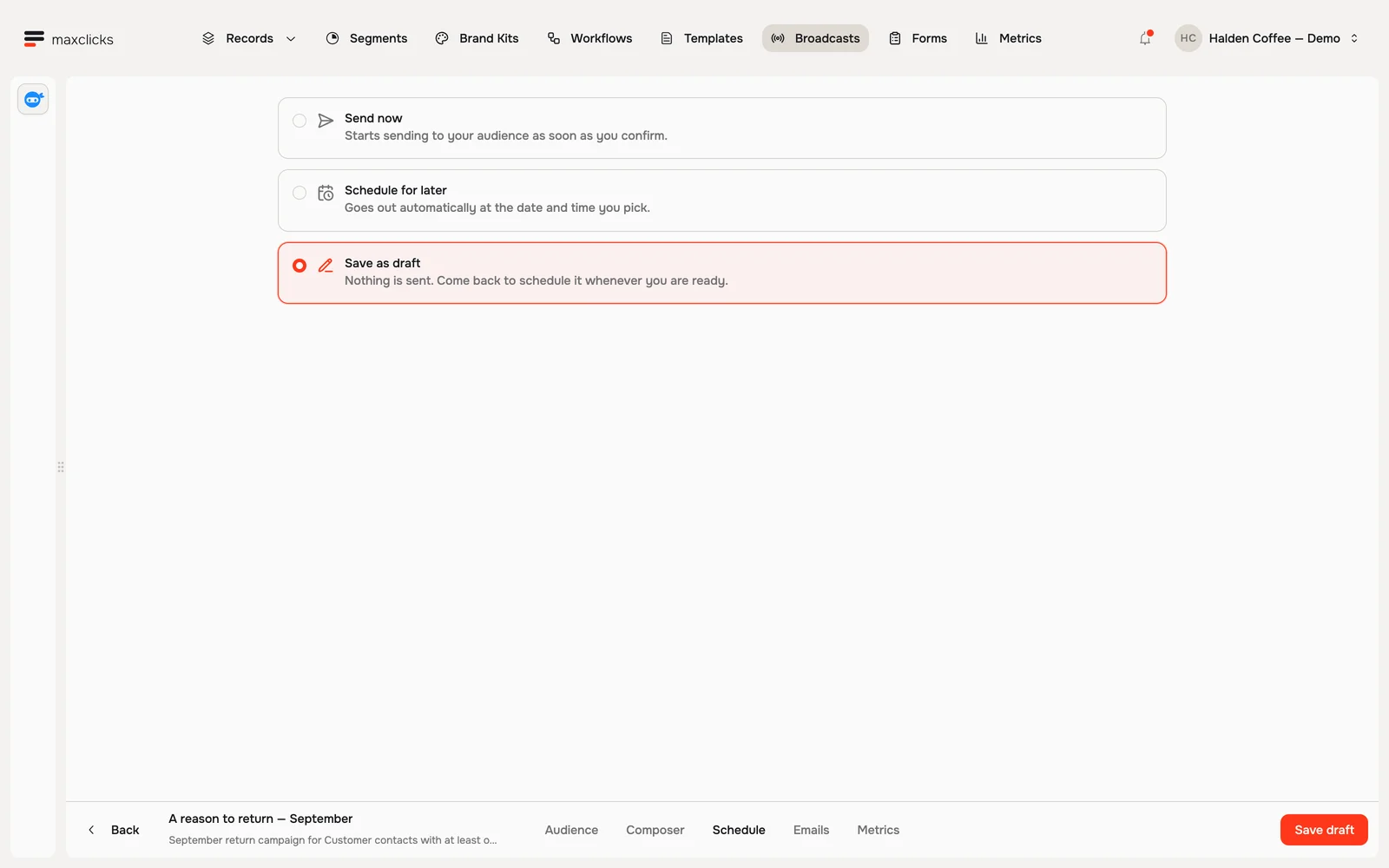
Halden demo · Send now, schedule for later, or save as draft. This campaign remains unscheduled.
Ask maxinja: "Prepare a draft campaign for customers who bought in the last 30 days. Explain the audience rule, use our brand kit, keep the sale dates and discount exact, and leave it unscheduled for review." Inspect the resulting selection and messages before committing the send.
Review before you commit
- Inspect the audience rule and several matching contacts. Confirm that the purchase or behavior belongs to this customer.
- Check Data, Personalize and Checks in the email rail. Preview sparse and complete customer examples; confirm sender, links, language, topic and fixed offer facts.
- Read Estimate, including generation, corrections and reviews. Unknown amounts are not zero; an uncalibrated duration is not a completion promise.
- Confirm the wallet, email allowance and domain are ready for the planned work.
- Check the schedule in the app's displayed time zone. Preparation may begin early; sending cannot begin before the scheduled dispatch time.
Preparation fixes the recipient selection and campaign revision. Later segment membership changes do not add people to that campaign. A successful preview is a sample; campaign checks still apply to the generated work.
Change your mind after scheduling
Open Metrics and read the sending banner. Cancel send is available before preparation starts and returns the campaign to editing. After preparation begins, Stop sending cancels remaining work permanently; messages already being dispatched may arrive. It cannot recall mail or undo usage already incurred.
A credit wait or quality hold is different from a stopped campaign. Inspect the reason before creating another send. The broadcast reference explains recovery and how previously accepted or uncertain deliveries are handled.
After you send
Start with Emails to check recipient-level preparation and sending outcomes, then Metrics for delivery and response. Sent means provider acceptance; Delivered arrives later and does not prove inbox placement. Check failures and cancellations before deciding a customer needs another message. Learn how to read these in See your results.