Build a workflow
Turn a customer milestone into a journey: a signup, a first purchase or a renewal. Define when to act, what to check and which email follows. maxinja can build the workflow and its emails from that brief; you inspect the canvas before publishing.
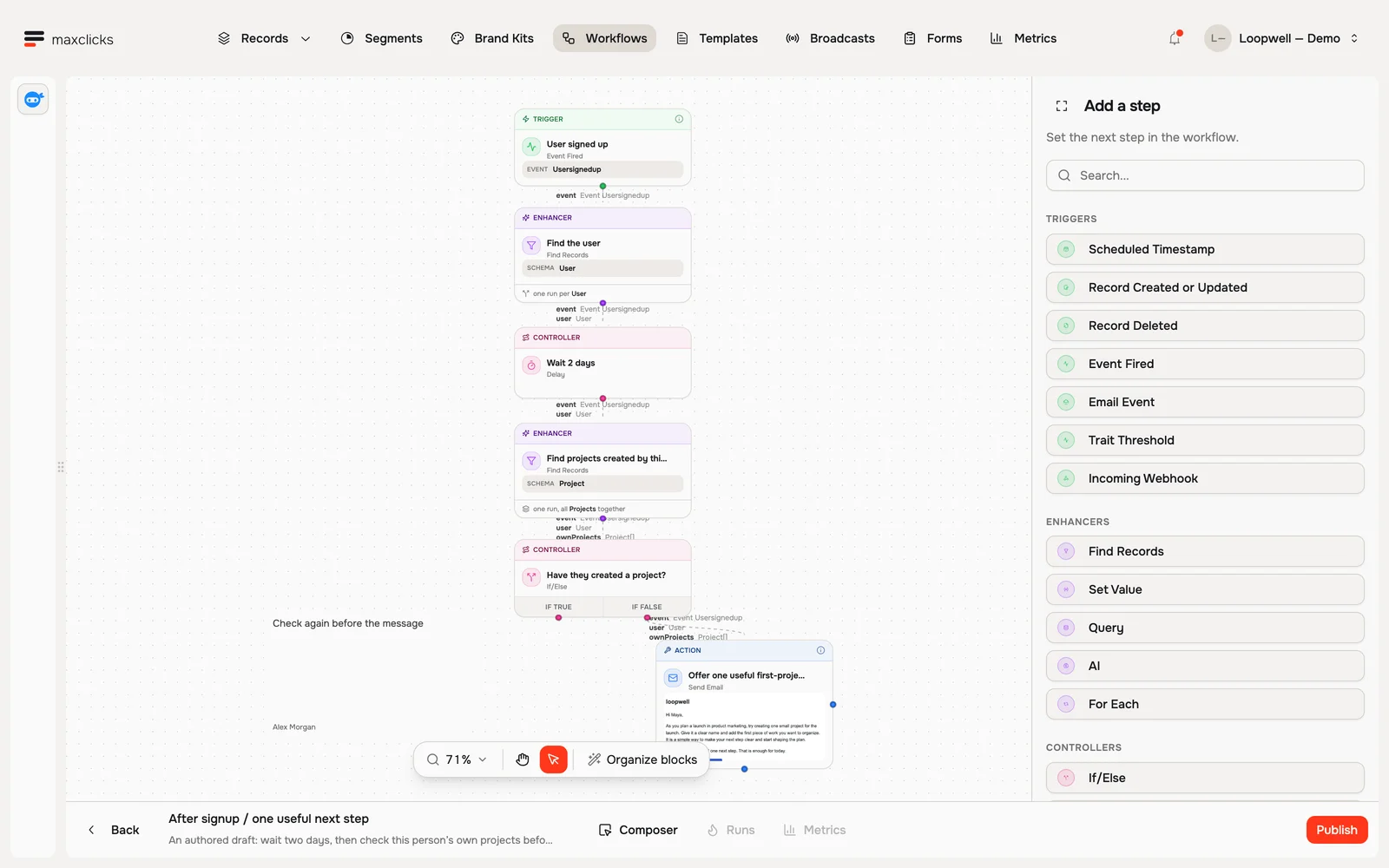
Walkthrough steps
Inspect the draft signup workflow. Open the Usersignedup trigger, two-day delay, condition checking this user’s own projects, and email step. The true branch ends the follow-up; the false branch continues. The tour does not publish or run this draft.
Start a new workflow
In the top navigation bar, open Workflows and click New workflow. Give it a name only you see, like "Welcome new contacts".
Pick what starts it
Every workflow begins with a trigger: the thing that kicks it off. Choose one, such as Record Created or Updated, Event Fired, or Scheduled Timestamp. For a welcome journey, choose the event or record change that actually represents signup. Record Created or Updated also reacts to updates, so configure its condition to match the intended moment.
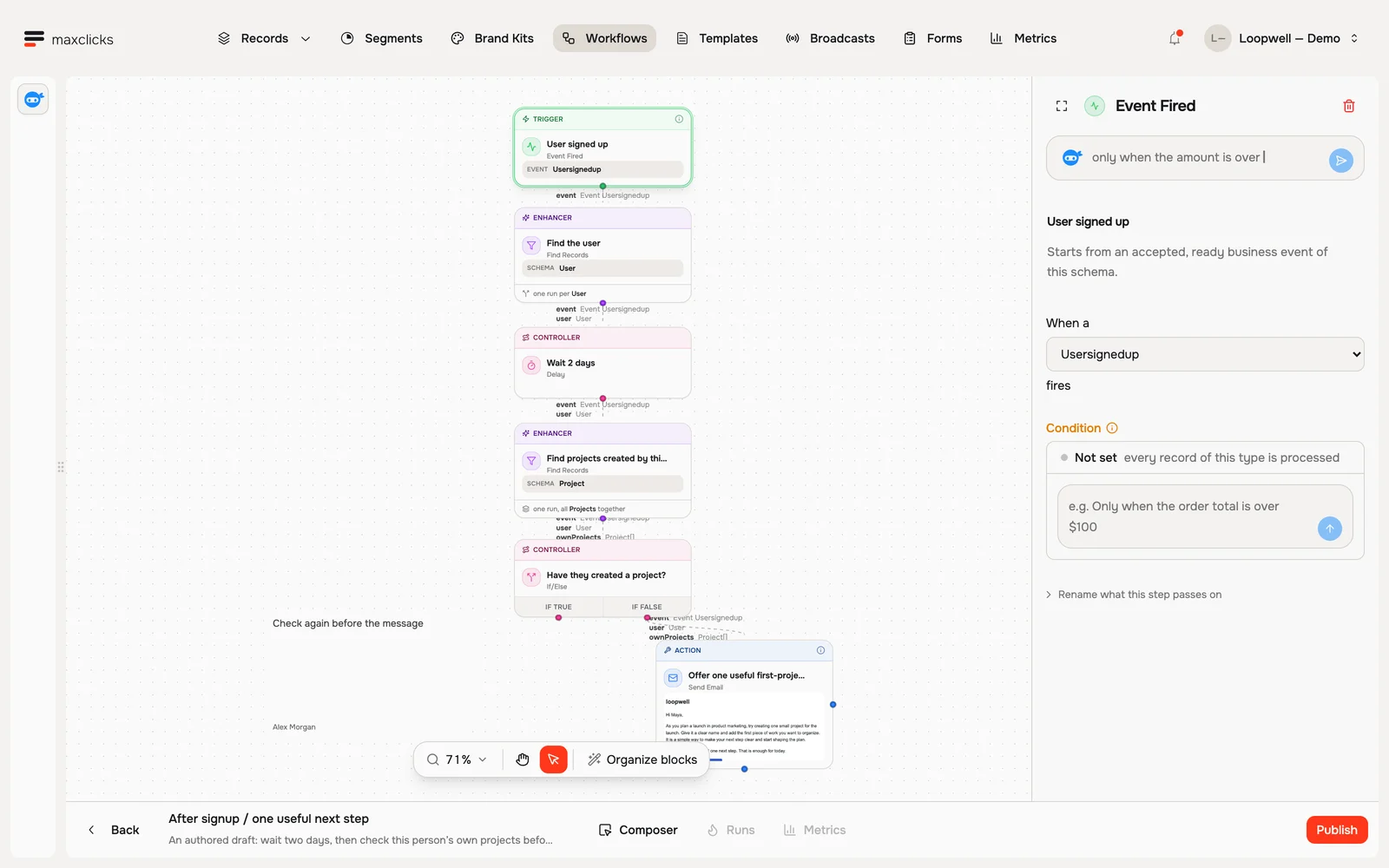
Loopwell demo · The signup event starts this draft; later steps check this user’s own projects. Add your steps
Use the plus button on the trigger to add the next step, already connected. Add a Delay step if you want a pause first, then add a Send Email step, which carries its own email that you compose inside the step. You can also branch based on a condition, find related records, or fire off other actions.
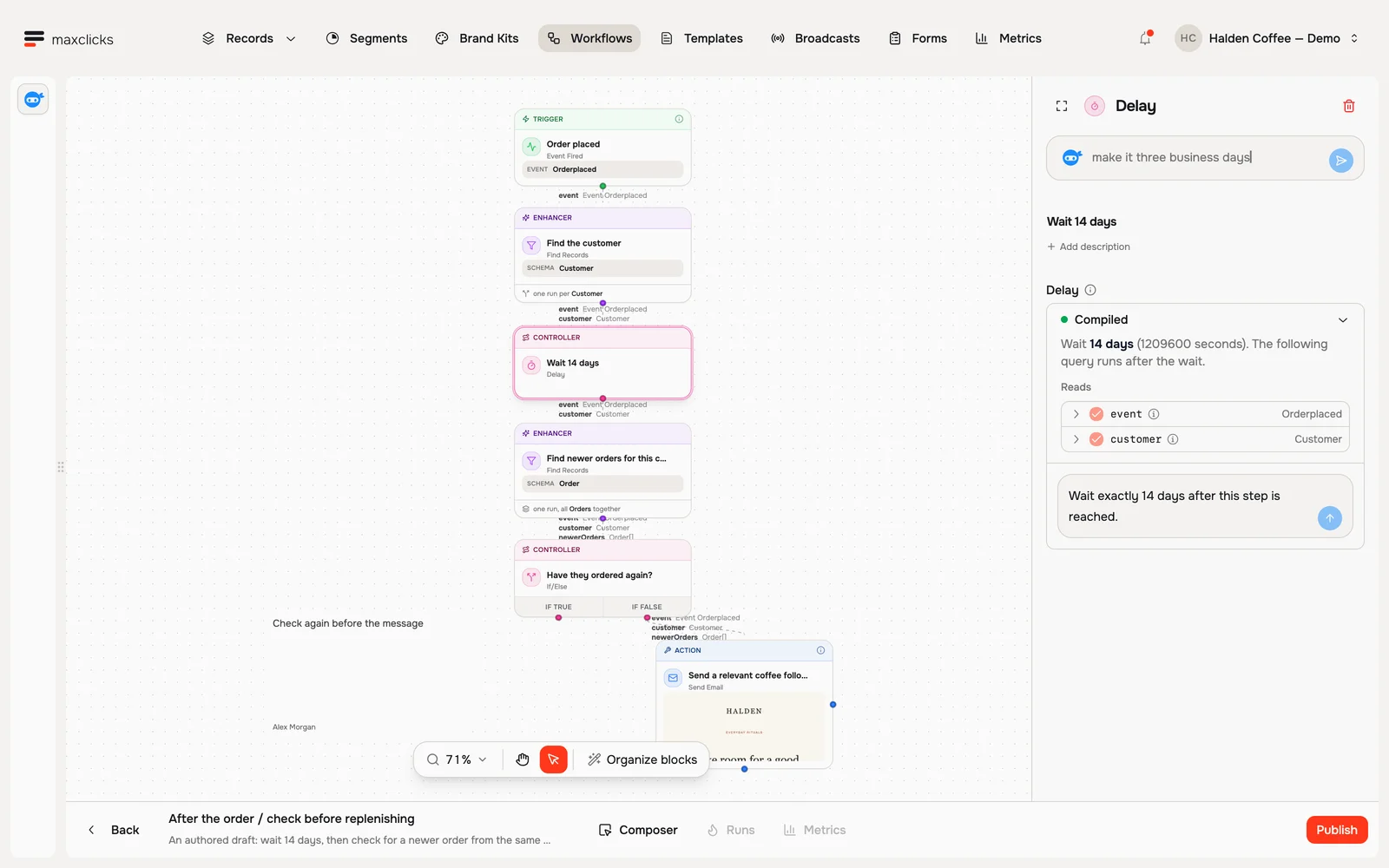
Halden demo · The draft waits 14 days before querying the customer’s latest orders. Set up the email
Open the Send Email step and design your message in the editor, so it matches your brand. Ask maxinja to draft it from a short description if you would rather not start from a blank canvas.
Publish to turn it on
While you build, your changes stay as a draft and nothing runs yet. When it looks right, click Publish to make the workflow live. From then on, it runs automatically for everyone who matches your trigger.
Ask maxinja: "Build a draft welcome journey for new signups. Wait one hour, then send a welcome email using our brand kit. Keep it unpublished for review." Inspect the trigger and recipient data as well as the email before publishing.
Review the customer decision
For a signup journey, separate the reason it started from the question you ask later. The signup event belongs at the trigger; after a two-day Delay, check whether this same customer has completed the target action. Fetch current records with Query or Find Records when the branch needs fresh data.
For event-based decisions, If/Else, Customer event history lets you choose Has occurred or Has not occurred, a lookback window and an allowance for late events. Choose whether to match this customer or the triggering event's correlation ID. The runtime saves the decision window and waits for late or delayed event storage before deciding; missing evidence is not automatically treated as no activity.
For a computed purchase or engagement threshold, use Trait Threshold. Publication establishes a baseline; it starts future crossings and does not immediately enroll everybody who already matches. See the block library.
Review the work it can create
Check Process each record separately on record steps and every For Each list. One trigger can create thousands of child runs, each executing later steps and consuming usage. An empty list ends a fan-out; an empty list kept in one run can still reach the next step.
For Send Email, confirm its recipient path is one contact, its marketing/topic eligibility, its sender and a representative render. Its Then branch follows provider acceptance; its optional email-event branch starts new runs when the selected activities occur.
After publication, inspect the first real examples in Runs. Compare Received and Produced values, the branch taken and the email's activity. Keep the trigger narrow while validating the journey.
Good to know
- Existing runs keep their published steps and email templates. Ordinary record values are read as needed, while stored computed-attribute generations are pinned for the root run and its children. Sending permission, consent and credits are still checked during execution.
- Where a step needs a rule, like "only customers who spent over 50", describe it in plain words and maxinja builds it.
What you cannot undo
Pause prevents new runs and parks existing execution before more steps start. It cannot undo completed writes or an email or HTTP request already in flight. There is no single-run cancel, skip or rewind control.
A correction affects new runs after publication. Old runs retain their old version, and publishing also resumes the workflow. Review those waiting runs before publishing a correction; do not assume they will inherit it.
Credit shortage, capacity limits and temporary service waits can resume automatically. A terminal failure needs investigation. Inspect an external call or uncertain email acceptance before re-triggering the journey, because the other system may already have acted.
Related
- Send a broadcast: a one-time email instead of an automation.
- Work with maxinja: the assistant builds and edits a workflow from a description.