Manage billing
Admins manage billing separately for each workspace. Use this guide to find your plan, check spending and manage payments. For prices and allowances, read How billing works.
Find your plan and balance
Open the space menu and choose Billing, or open it through Settings. Billing & Usage has two tabs:
- Overview: your plan, email allowance, credit balance, payment methods and invoices.
- Usage: recorded credit spending by period, category and member.
Both tabs are available on Free and Premium. If you cannot see Billing, ask a workspace admin.
The subscription and prepaid credits are separate. Premium covers the workspace and reserved record capacity, with no per-seat charge. AI work and email above the allowance use the shared wallet. No monthly AI allowance or credit gift is included. Buying credits on Free leaves its 100-recipient monthly cap unchanged. See AI and usage credits.
Top up, and keep it topped up
- On Overview, add a card under Payment methods if needed.
- Click Add Credits and enter an amount from 10 to 10,000 in your workspace currency.
- Confirm the charge and complete any bank verification. Check that Credits Balance updates.
To refill automatically, choose Enable Auto Reload. Set a reload amount and the balance that triggers it, then save. Edit auto reload changes or disables it later.
Auto reload checks about every 15 minutes. Leave enough credit for work between checks; it is not an instant refill. The auto reload reference explains the limits and an example charge.
See where it went
Open Usage, choose a date range and group by category or member. Use this to identify which type of work or member drove spending. The report does not attribute charges to individual campaigns.
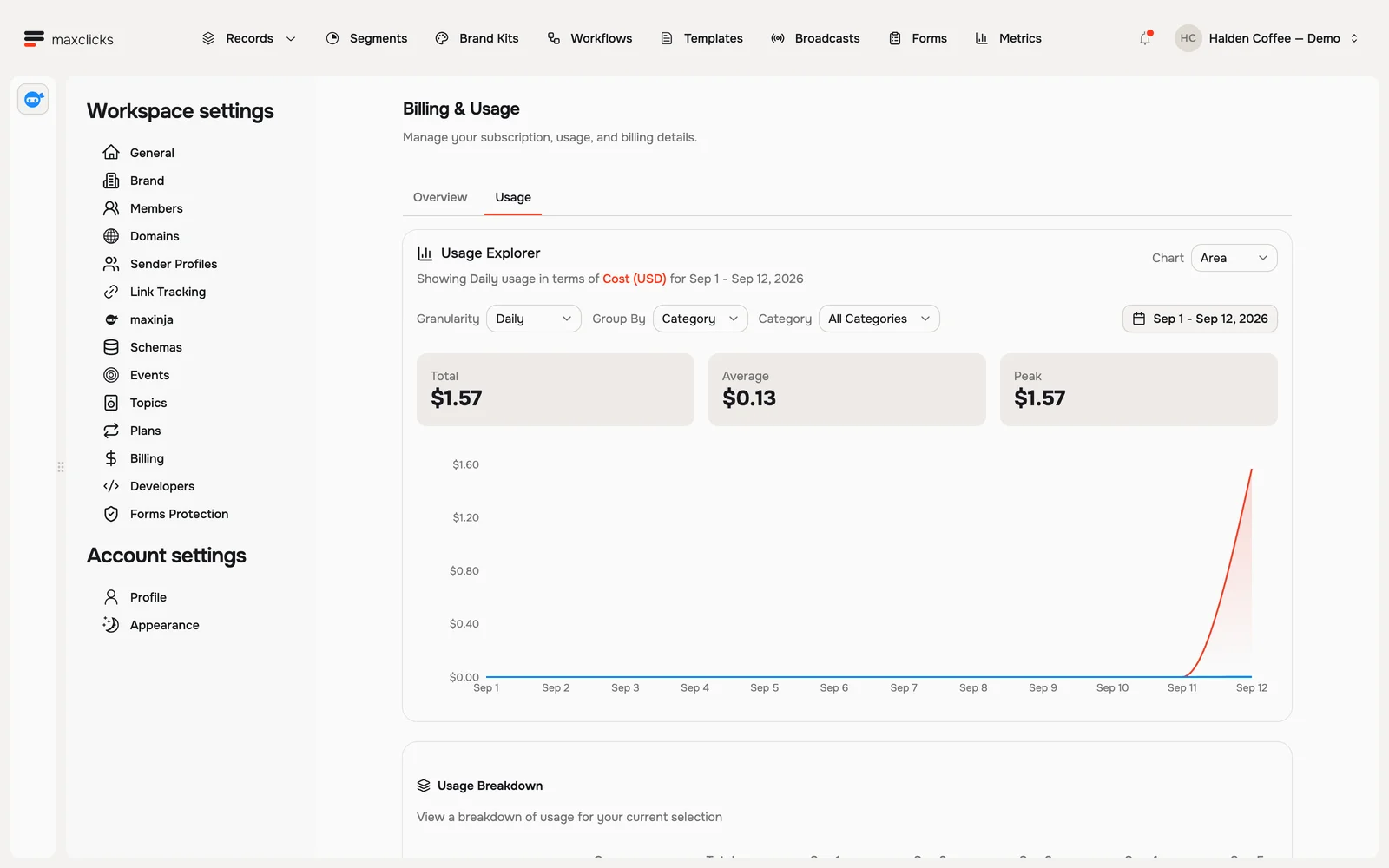
Change a filter or reload the tab to see recent spending. On Overview, open an invoice or download its PDF. Invoices show subscription charges and credit purchases; Usage shows how credits were spent.
Upgrade, change or cancel
Choose Upgrade to Premium to review monthly pricing. New subscriptions are monthly only. Check the plan calculation and capacity changes before confirming.
To cancel, choose Cancel subscription on the plan card. Premium stays active until the paid period ends. Choose Resume subscription before then to undo the cancellation. After it ends, the workspace returns to Free and keeps purchased credits.
Plan for work already running
All teammates, campaigns and workflows use the same prepaid workspace wallet for paid work. Before a large send, review the composer's Estimate and fund the expected usage.
If work stops, inspect its reason before retrying. Waiting for credits, a terminal failure and an exhausted email allowance need different responses. Cancelling Premium or disabling auto reload does not stop automation. Use broadcast stop or workflow pause to prevent further execution.
Continue with How billing works or AI and usage credits.