Set up your brand
Give your agents the design and voice guidance your team already works with. A brand kit holds reusable colors, fonts, imagery, social links and writing rules. Choose a published kit for each email or form; business identity and address live separately in Settings.
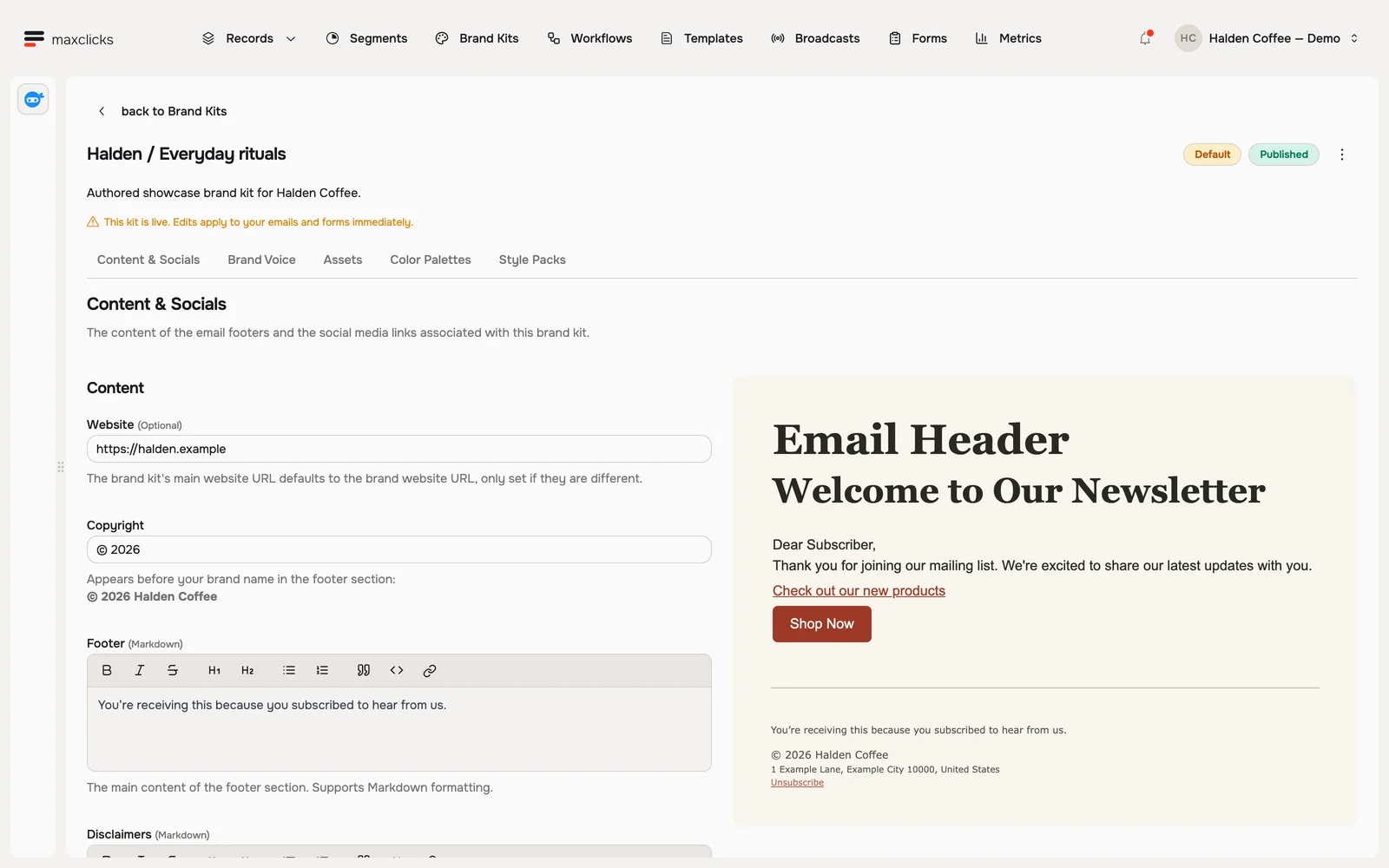
Walkthrough steps
Inspect the published Halden brand kit. Open Color Palettes to review its colors, then Brand Voice to read the writing rules. Return to Content & Socials and its sample footer. The kit contains authored demo branding.
Open your brand
Your brand lives in two places.
For your brand name, logo, website, and address, open the space menu in the top bar, go to Settings, then Brand.
For the colors, fonts, assets, and social links your emails use, open Brand Kits in the top bar. Review the kit created during setup if one is available, or click Create brand kit to make one.
Add your logo and details
In Settings, Brand, upload your logo and, if you have one, a small icon. Fill in your brand name and website. Your business address goes here too; maxclicks uses it in the sending footer.
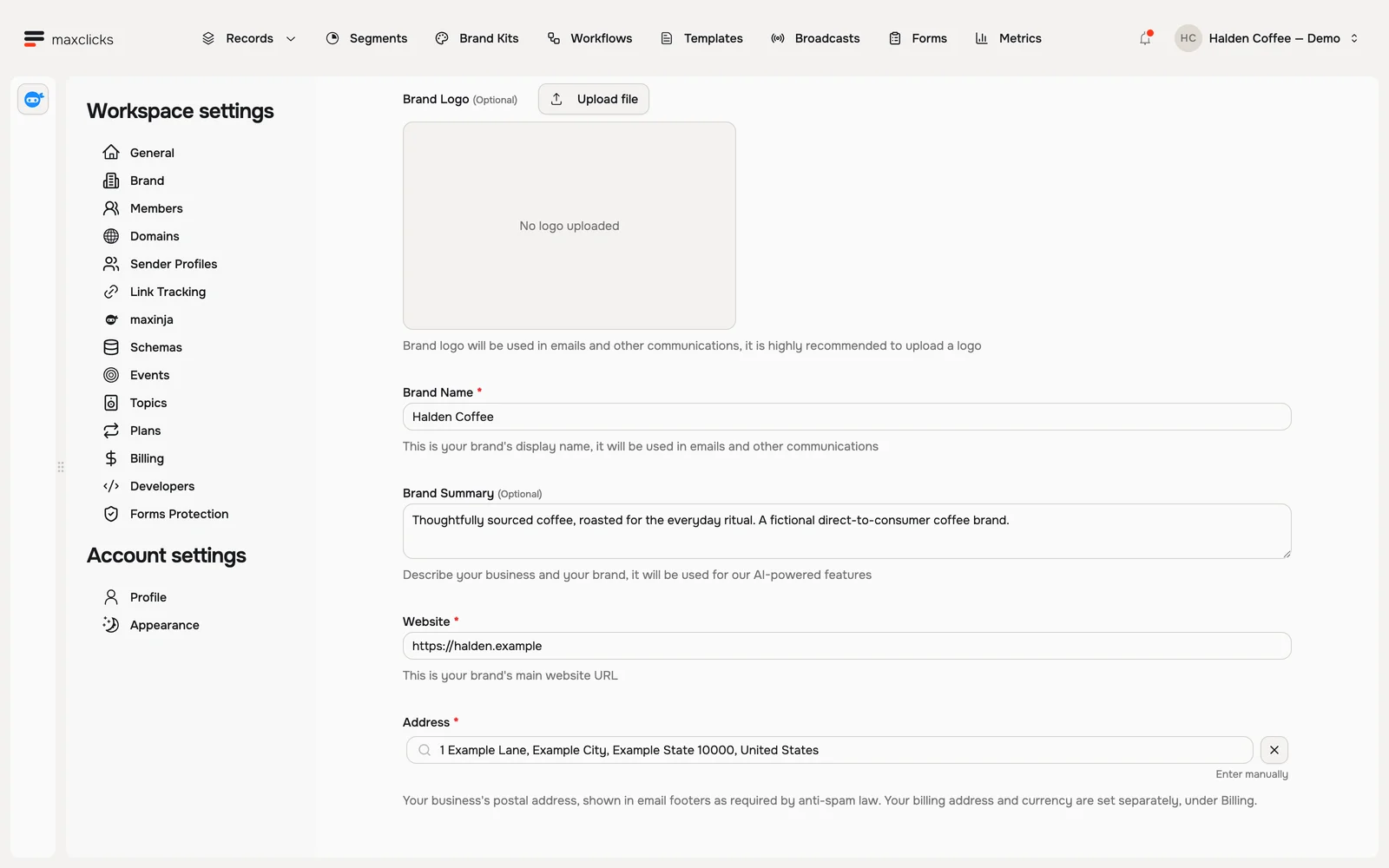
Halden demo · Workspace brand identity and footer address, separate from reusable brand kits. Set your colors
In your brand kit, open Color Palettes and choose the colors your emails use: background, text and headings, buttons, and links. Pick colors that match your website so your emails feel familiar.
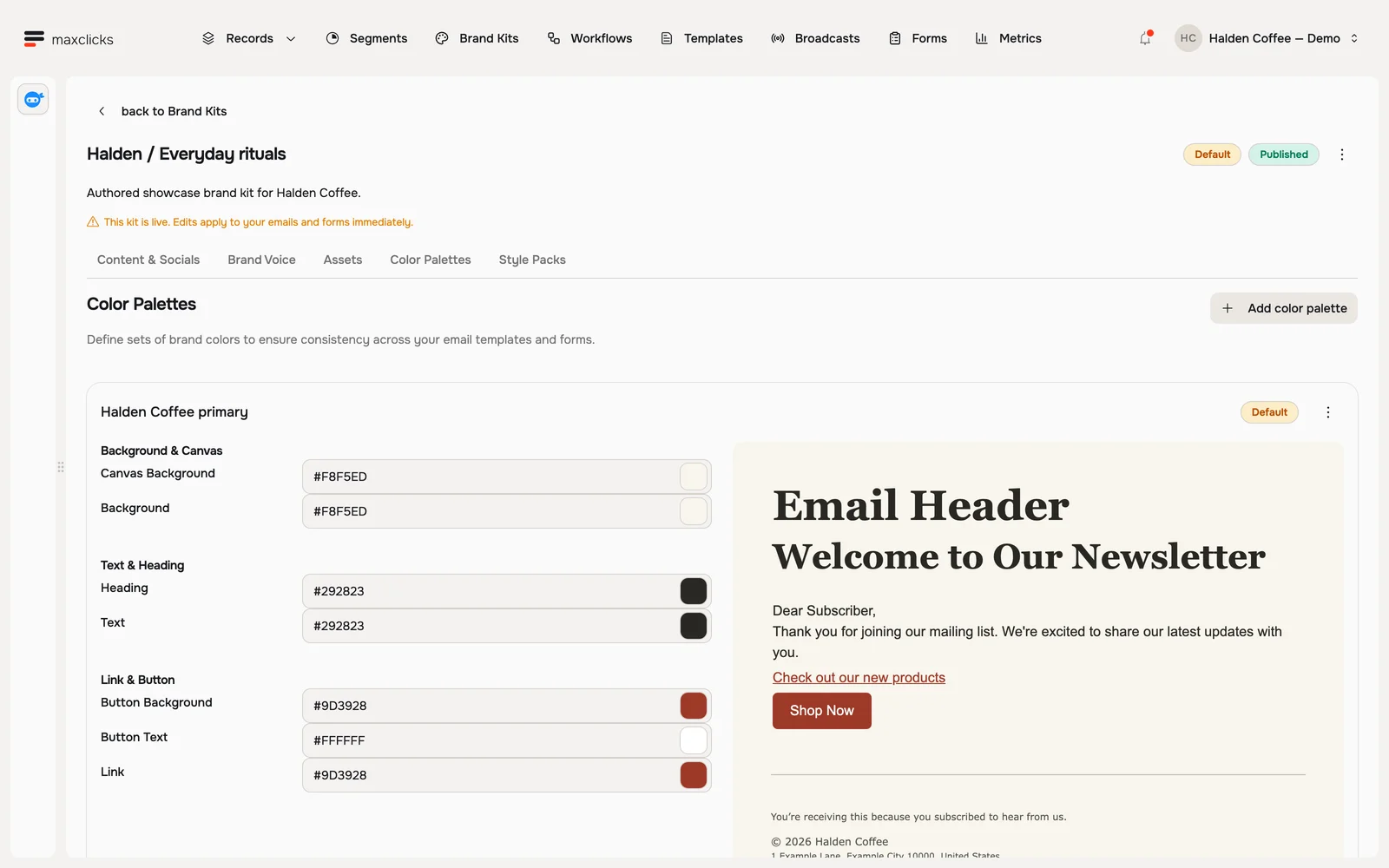
Halden demo · Color settings and their brand preview, side by side. Pick your fonts and spacing
Open Style Packs. Choose a font for your headings and one for your body text, then set corner rounding and spacing. Templates using that style pack inherit these choices where their design uses the kit's styles.
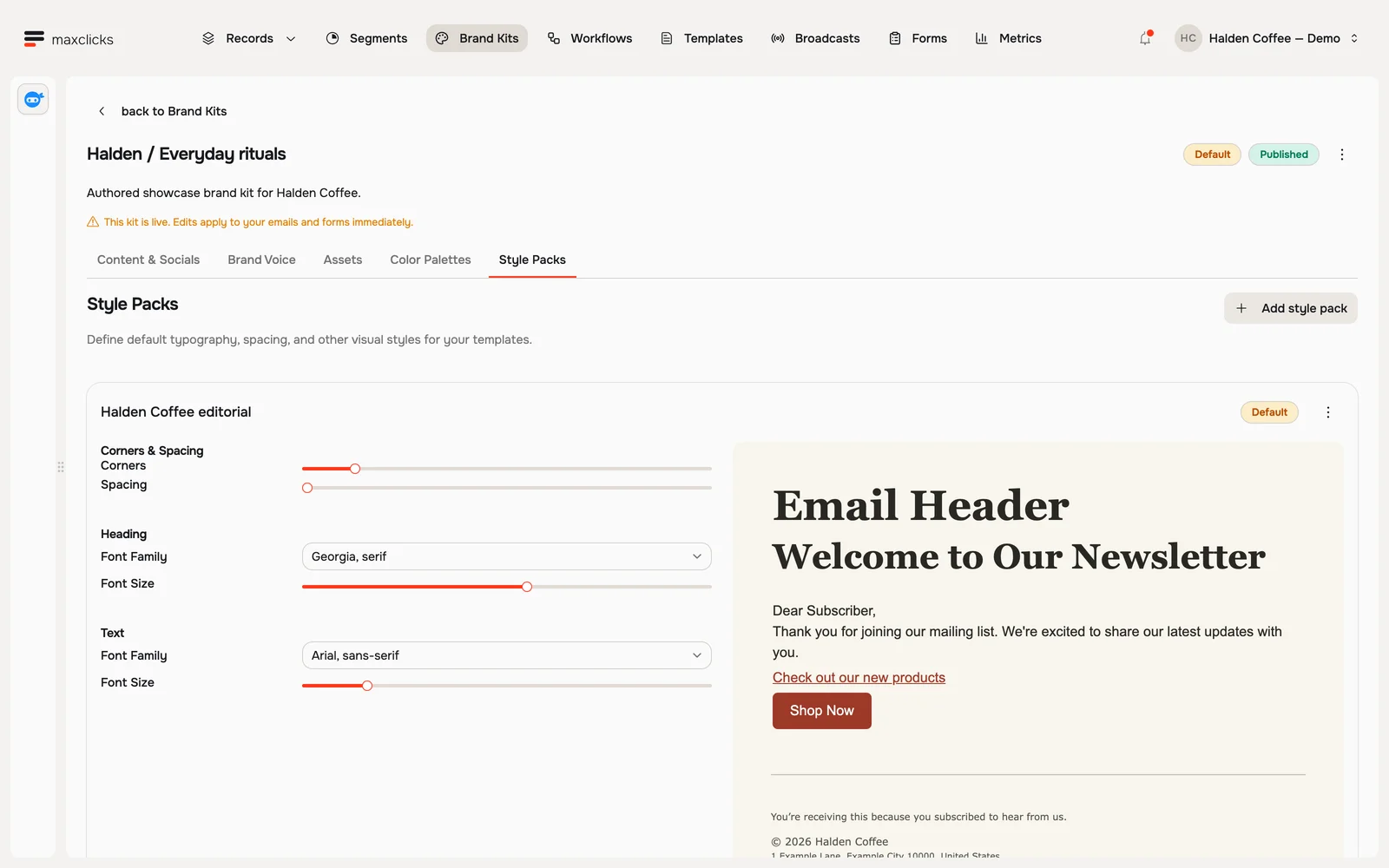
Halden demo · Georgia headings, Arial body text, spacing and corner settings. Add your social links
Open Content & Socials and add the profiles you want in your email footers, like Instagram, LinkedIn, or YouTube. Only the ones you add show up.
Add your images and voice (optional)
Assets is where you keep images you reuse in emails. Brand Voice is where you describe your values and the tone you write in, which maxinja follows when it writes for you.
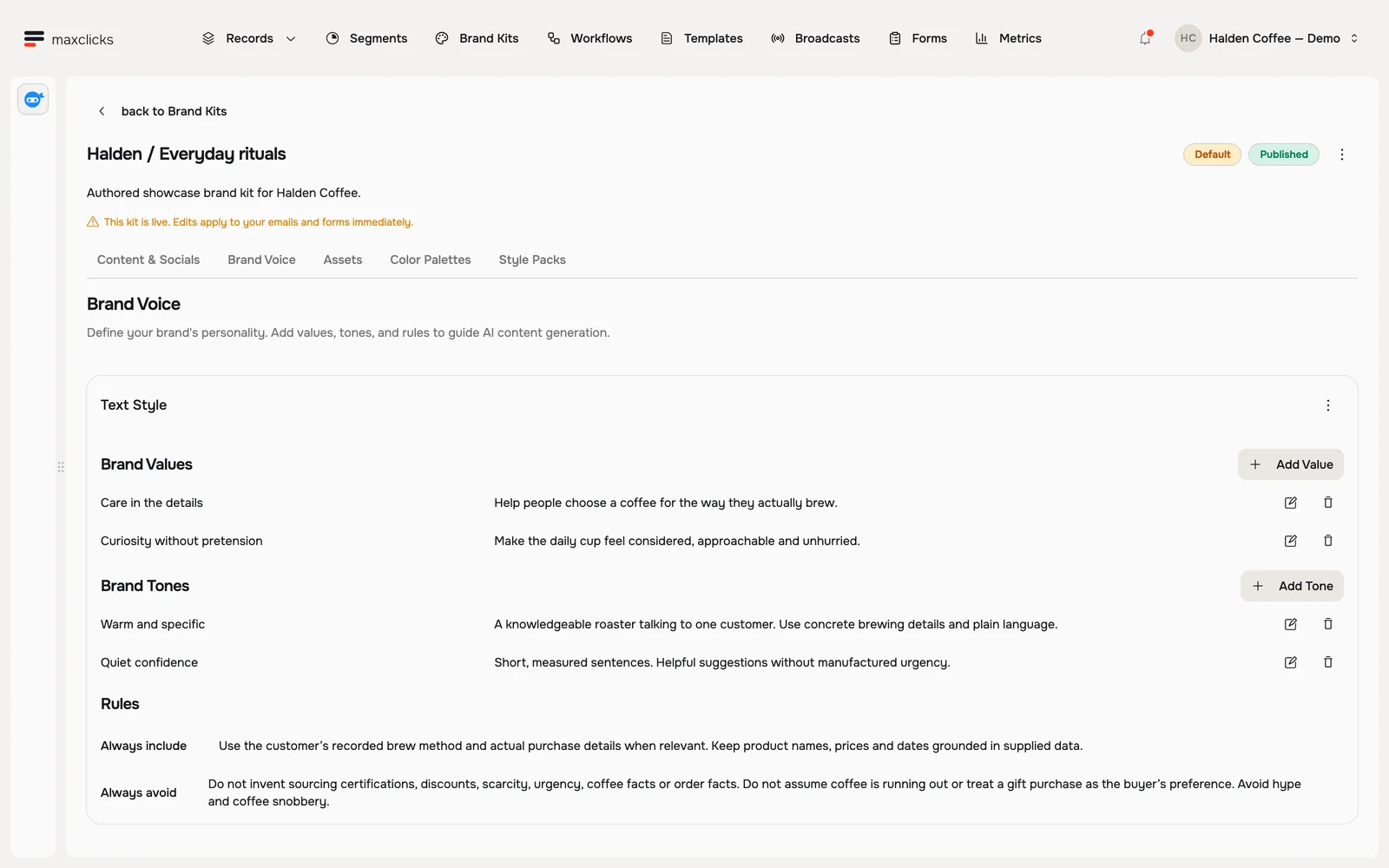
Halden demo · Saved voice, values and writing rules guide generated copy. Publish your brand kit
When it looks right, publish the brand kit. Publishing is what makes it available to your emails and forms, and the first kit you publish becomes your brand default. After that the kit stays live: saved edits affect work that reads the kit again. They do not rewrite existing prose, sent emails or frozen broadcast content. Use a second kit when experimenting.
A new brand kit starts from a default color palette and style pack, so you have something working from the first minute. Adjust them to match your website, then publish when it looks right.
Check the kit in actual content
Open a draft email and select the kit, palette, style pack and asset collection. Review the footer, links, typography and a generated paragraph with real sample data. Writing rules guide AI generation; they are not an automatic banned-word or compliance check. Keep required wording outside AI regions.
An existing hard-coded color does not become a brand reference merely because you changed kits. Ask maxinja to update the draft where needed, then inspect a fresh preview. See brand kits for publication and deletion behavior.
Next
With your brand ready, design an email and watch it pick up your colors and fonts automatically.