Understand your data
Start with what a campaign needs to know. A renewal date can decide when to write; a purchase can explain what to say. This guide shows how to find your records, define their fields and make that context usable across audiences, email and workflows.
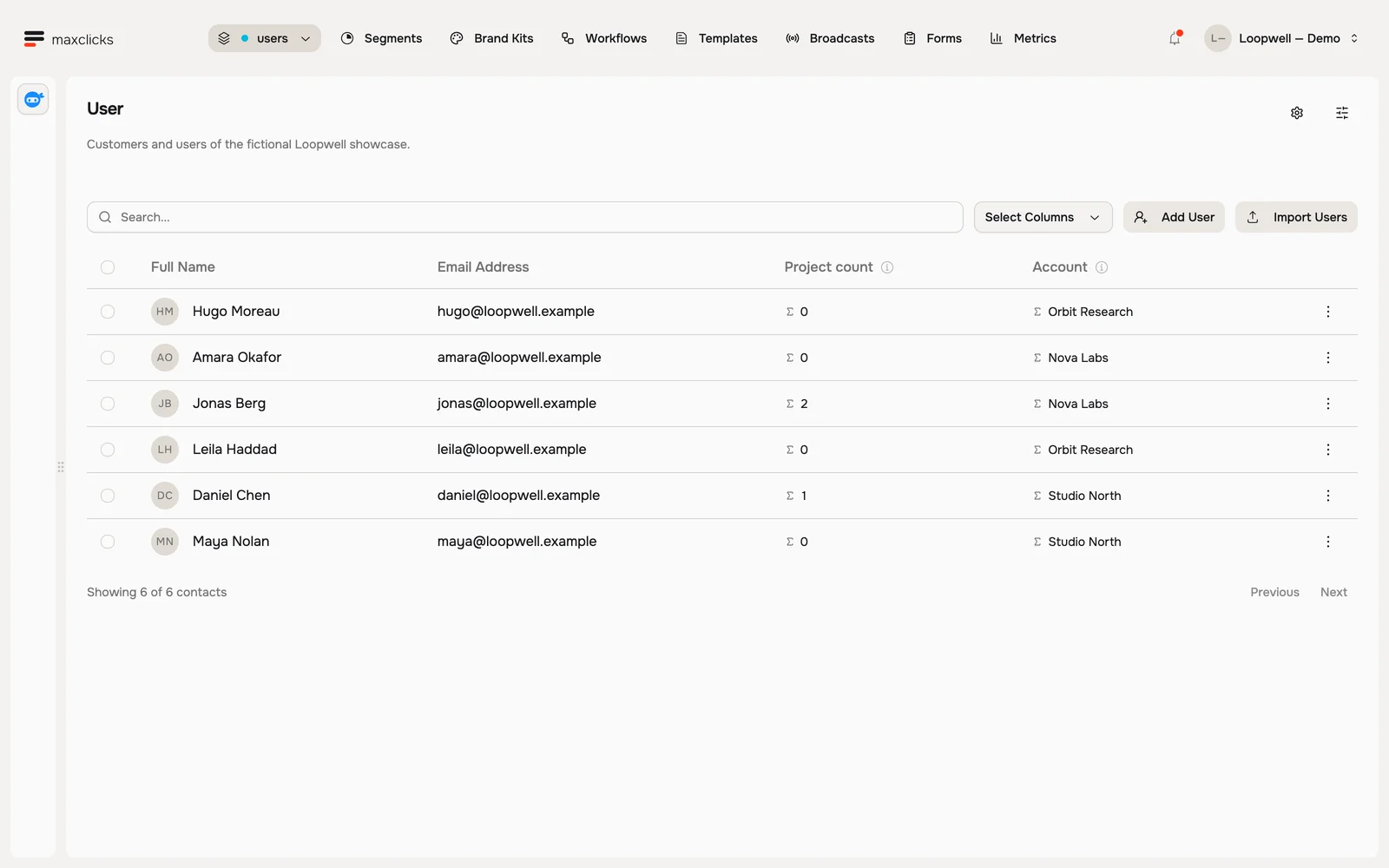
Walkthrough steps
Inspect the six fictional Loopwell users and their computed project counts. Open Maya’s project-count explanation, which resolves to zero projects created by her, then open her contact profile. Her teammate’s project does not count as hers. No record is edited.
The three kinds of records
- Contacts are people you can email: your customers, students, subscribers. One contact is one person.
- Objects are the things in your business that are not people: products, orders, companies.
- Events are moments that happened: a purchase completed, a cart abandoned.
The difference that matters day to day: you keep contacts and objects up to date over time, but an event is a snapshot. Once it happens it never changes, and it is the thing a workflow can listen for.
Events are also the one kind that does not appear under Records. To read the ones that have fired, open Settings, then Events, click the event type, and use its Received events tab.
Look at what you already have
Open your records
In the top navigation, open Records. The dropdown lists your contact and object types.
Open a record type
Click one, like your customers, to see the records inside it and the fields each one carries.
Open a single record
Click any record to see everything about it in one place. This is where you edit its fields or add notes.
Every contact type arrives with a set of built-in fields you cannot remove: name, email, phone, tags, notes and a few others. They are listed on the contacts reference.
Add a field of your own
Anything your business tracks that is not already there, you add yourself: a plan level, a birthday, a favorite product.
Open the type's fields
Go to Settings, then Schemas, click the type, and switch to the Attributes tab. Business event fields are on Properties under Settings → Events.
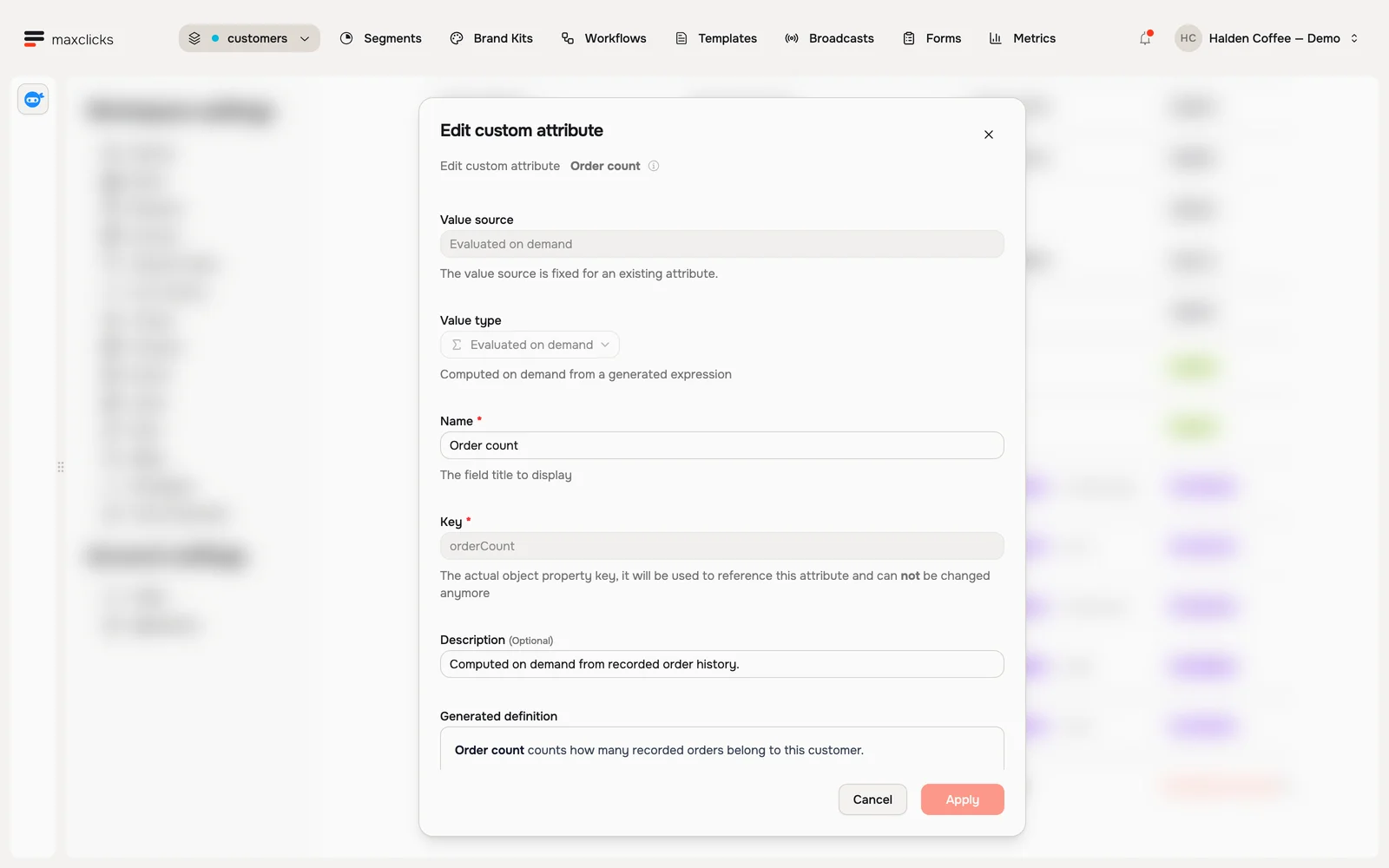
Halden demo · Order count is evaluated from recorded order history when requested. Create the field
Click Create attribute and fill in four things.
- Name
Type- Requirement
- Required
- Description
What the field holds: Text, Number, Decimal, Checkbox, Date, Email, URL, Multi-select and more. The type is the validation rule, so a bad value is rejected whether it came from a CSV or from your app.
- Name
Name- Requirement
- Required
- Description
The label people see in the app, like
Loyalty points.
- Name
Key- Requirement
- Required
- Description
The name you use in an email and over the API, like
loyaltyPoints. maxclicks suggests one from the name.
- Name
Description- Description
Optional, but write it. maxinja reads it every time it builds a segment, a computed field or workflow logic that touches this field.
The full list of types and their settings is on the attributes reference.
Say what happens when it arrives empty
Choose When a record is created without a value: Leave it empty, Use a default value, Require it, or AI autofill. AI autofill can infer from the record or follow your prompt. These policies apply to new records; they do not fill old records or rerun on an update.
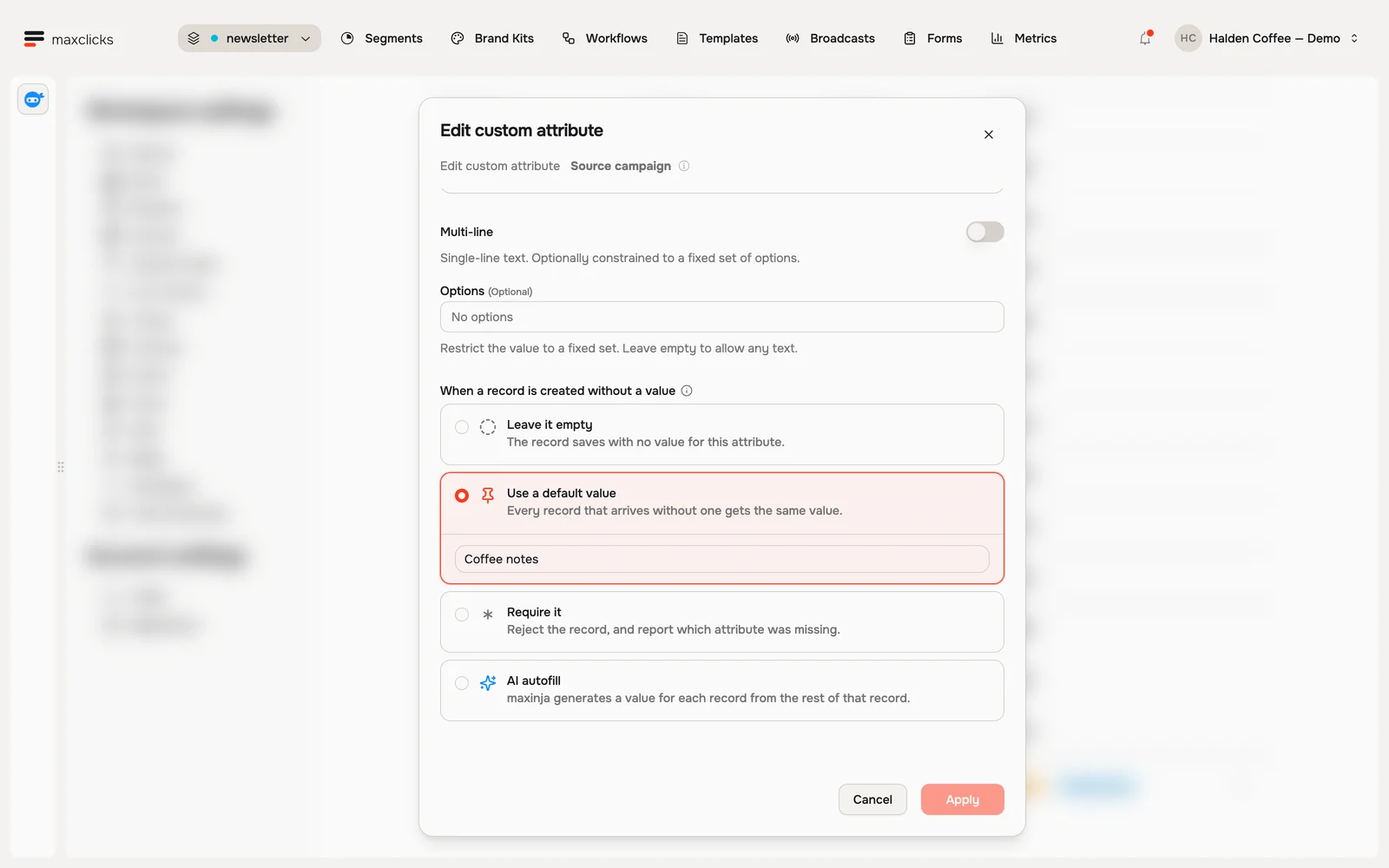
Halden demo · A fixed default fills the missing field. AI autofill is a separate choice. Walkthrough steps
Open Source campaign in the newsletter schema and inspect the missing-value options. The saved fixed default is Coffee notes. No policy change is submitted.
AI autofill consumes credits for each new record and missing AI field that needs generation. Import rows that match existing records do not regenerate those fields. Use a fixed default for a fixed answer and test a few new records before a large import.
Fields maxclicks works out for you
Pick Evaluated on demand as the type and you describe the answer instead of filling the field in: "the company this contact works for", "total spent on completed orders". maxinja writes the logic and the value is worked out fresh every time something asks for it, using the source data available at that moment. Review the generated target and one or many cardinality. Test a record with a known match and one without a match. See evaluated attributes.
For a recurring measure of event history, open Settings → Events → Computed attributes. Choose whose profile receives the result, then describe the source, count/sum/latest measure, window and cadence. Review the result and check the published Data through timestamp. No matching history is empty, not zero. See computed attributes.
Both kinds need expansion when selected as email or workflow data. A background calculation is not rerun merely because the contact is opened.
What you can change later, and what you cannot
Rename a field, rewrite its description and adjust its settings whenever you like: open the Attributes tab and click the row.
Two things are fixed the moment the field exists, its Key and its Type, because changing either would leave every record, segment and email that used the old shape pointing at nothing.
Deleting a field only works while nothing depends on it. If another field, a segment, a broadcast, a workflow step, a webhook, an email template or a form uses it, maxclicks refuses and names what is in the way. Unhook those first.
Next
Head to Add your contacts to fill your record types, then build an audience from them.