Design an email
Build an email around one clear reason to act. Set the layout, apply your published brand kit, and decide which customer details the message needs. This guide takes you from composer to a rendered preview you can inspect.
Walkthrough steps
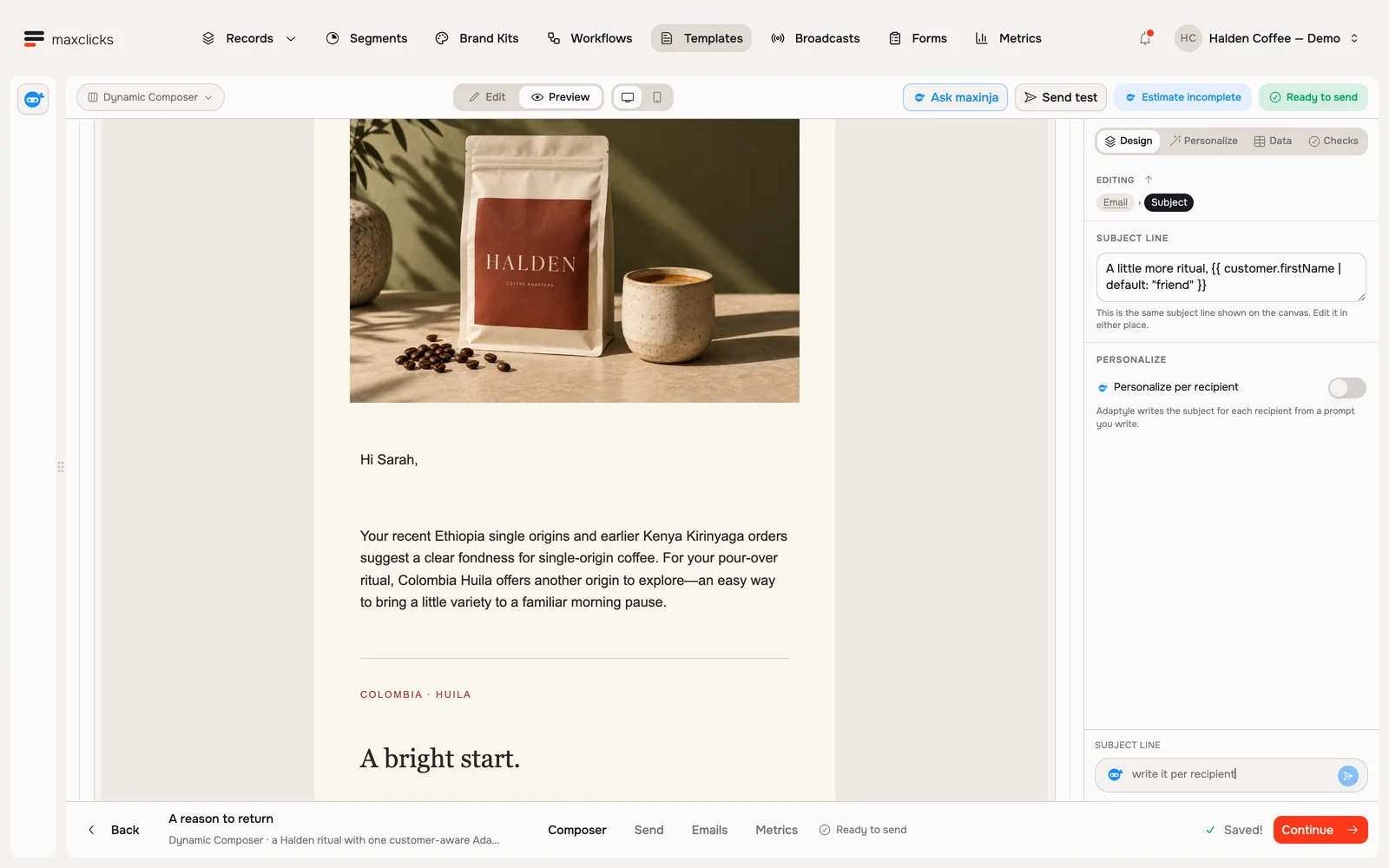
With Sarah selected, request a real personalized preview and wait for it to finish. Scroll to the generated paragraph connecting her Ethiopia and Kenya purchase history and pour-over preference to the supplied Colombia Huila offer. No email is sent; separate generations can vary.
Open the editor
Add your content
Add blocks one at a time: Text for your message, Image for a photo or banner, Button for a link like "Shop now", and Divider or Spacer to give things room to breathe. You can also paste a URL into a YouTube Video, X Post, or Link Preview block. Click a block to edit it, or drag it to move it.
Choose a layout
In the Dynamic Composer, arrange your content into sections, and split a section into columns when you want two things side by side, like an image next to some text. Reorder sections by dragging them until the flow feels right. The Plain Composer has no sections or columns: it runs down one column, which is what gives it a written-by-a-human look.
Make it look like your brand
A new email starts from your brand kit, so the colors, fonts, and logo are already yours. Change the kit later and the emails using it pick up the change the next time they render.
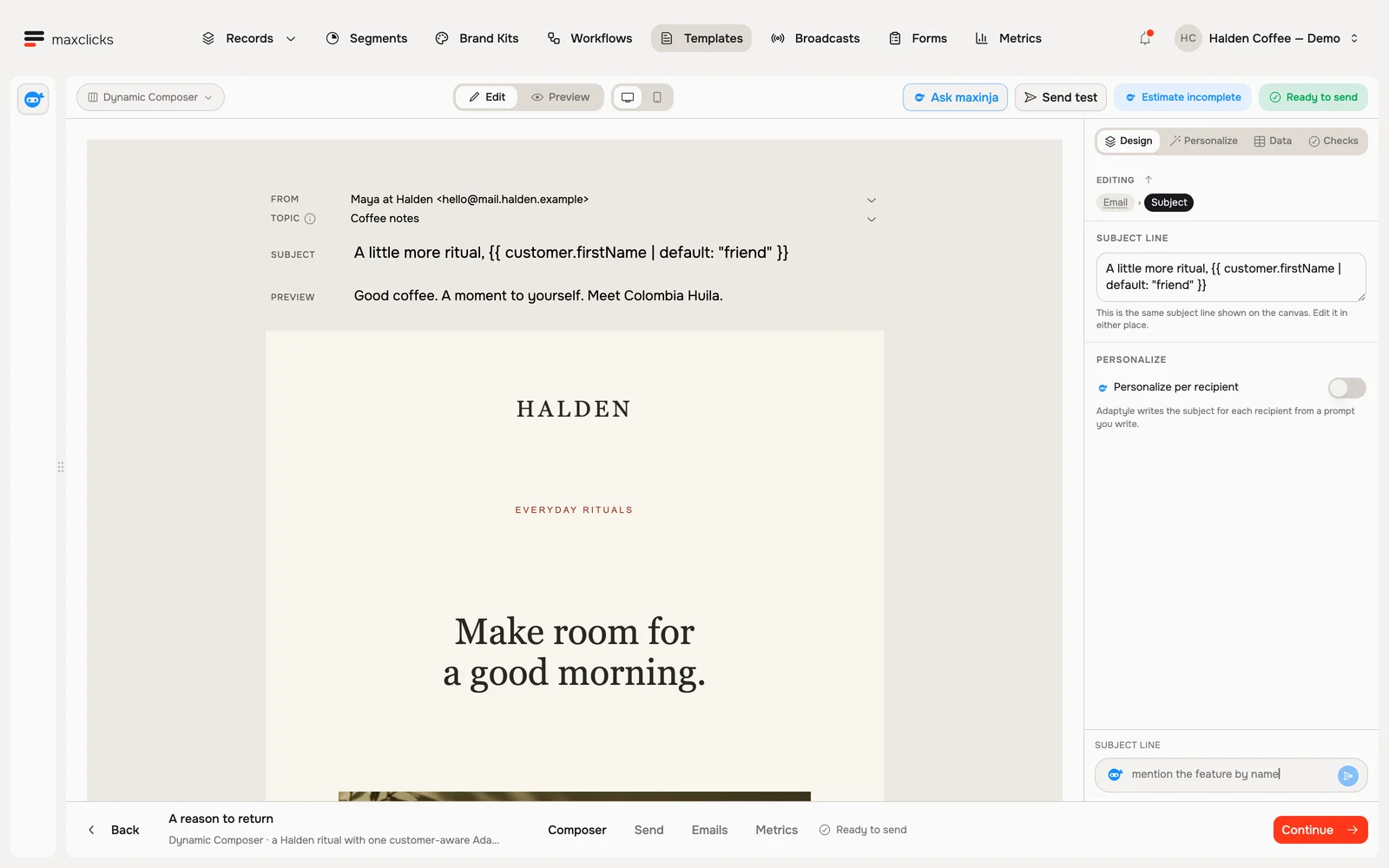
Halden demo · A branded email authored in Dynamic Composer. Walkthrough steps
Tour the Dynamic Composer: inspect the preview, open Data to see the selected Customer record, then return to the authored email. Light shows an existing generated variant for Priya; dark also demonstrates Base preview. No new AI generation or send is performed in this tour.
Preview and adjust
Open the preview whenever you want to see how the email will land in an inbox. It sits beside the editor when the window is wide enough, and covers it when it is not. If your email has AI-personalized parts, choose a Model and a Thinking depth under Personalize → Runs with, then click Generate preview to render one person's version. Tweak the wording, swap an image, or nudge the spacing until you are happy.
Ask maxinja: "Design a welcome email with a hero image, a short intro, and a button to our homepage." It builds the layout and writes the copy, and you can keep refining from there.
Review more than the canvas
Use Design to edit the selected block and the maxinja input below the tabs to request a specific change. Personalize lists prompts and variables, flags missing fallbacks, and holds the runtime model and estimate. Data controls the sample and recipient. Checks lists readiness problems.
Switch between Base and Personalized to compare fixed content with generated copy. Test a recipient with complete context and one with missing values. Use Send test for inbox appearance; it sends the rendered sample and does not establish marketing eligibility or audience correctness.
Before scaling up, read the estimate. An unknown campaign cost is not zero, and the editor’s readiness chip does not replace broadcast preparation checks.
Related
Once your email looks right, learn how to send a broadcast to a group, or set your brand so every email starts on-brand.